Terraform execution engine
Cushy's single mutation path: compose a blueprint into native HCL, plan, pass the policy and cost gates, approve, apply the saved plan, and track drift and state versions.
Terraform is the platform's one mutation path. Every change to your cloud estate — from a form or from the resource drawer — becomes a workspace run that goes plan → policy/cost gates → approval → apply the saved plan → inventory. The console never hand-writes HCL strings; it composes versioned blueprints into a machine-generated module and renders it to native HCL (main.tf) — no quoting or escaping bugs.
Workspaces
A workspace is one (organization, cloud account, region, blueprint) instance. Create one from the blueprint picker on the Terraform screen once you have a healthy cloud connection. Runs are strictly serialized per workspace — a second plan while one is open returns a conflict.
When you create a workspace you pick its criticality, which sets its approval policy: Production / critical (the default) requires a *second operator* to approve every run — the plan author can't approve their own work (separation of duties). Standard / non-production lets the operator who planned also approve and apply, so a solo change to a dev or staging estate isn't blocked waiting for someone else. Both policies still require the plan's policy checks to pass before approval. Existing workspaces (and any request that omits the field) default to Production.
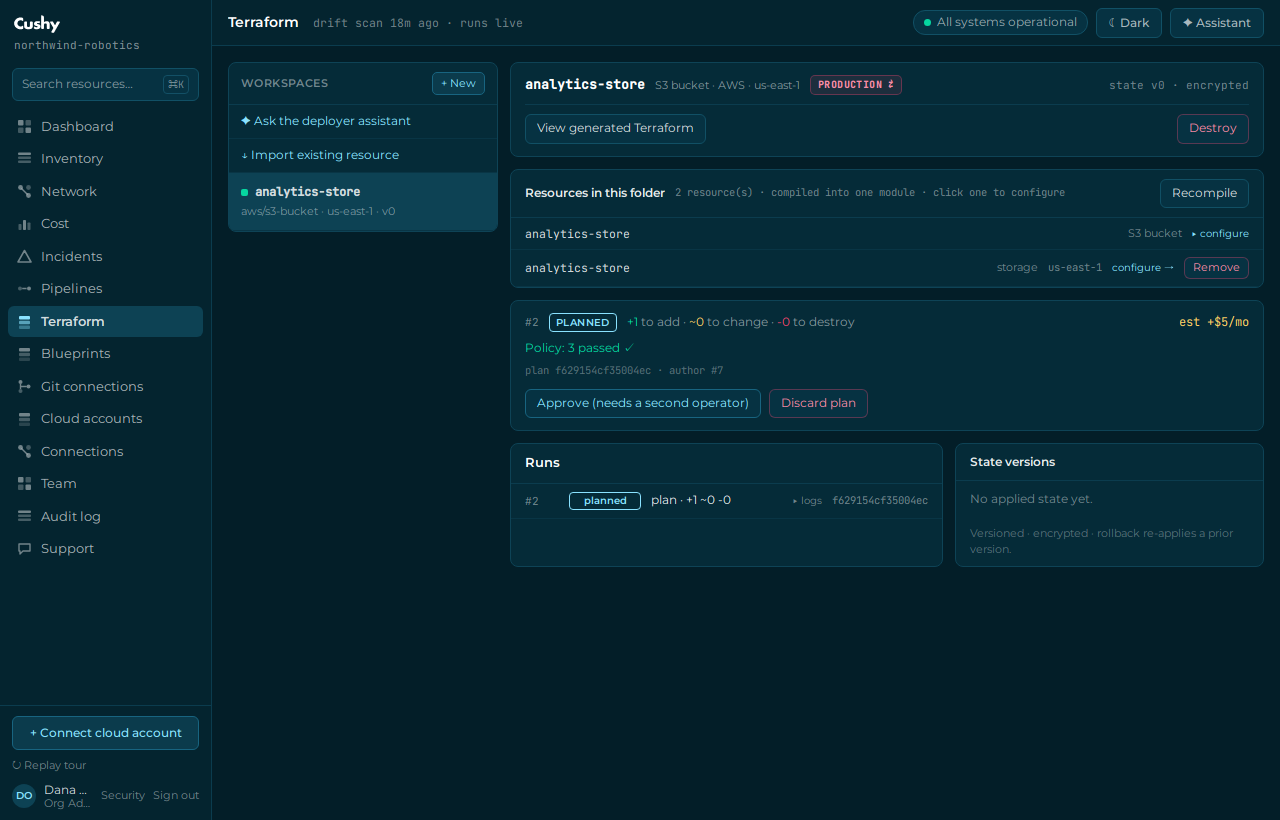
Plan → policy & cost → approve → apply
- Configure & plan
Fill the blueprint's typed form (name, region, tags, and type-specific fields).
POST /api/terraform/workspaces/{id}/plancomposes the module, runs the plan, evaluates policy, and estimates the monthly cost delta. The plan is saved on a run. - Read the gates
The run shows the human diff (adds / changes / destroys), the policy result (e.g. no-public-bucket, mandatory-tags, region-allowlist), and the Δ$/month. A policy violation blocks approval and names the failing rule.
- Approve
POST .../approverequires the policy to pass, and — on a Production / critical workspace — a second operator: the plan's author can't approve their own run (separation of duties, enforced with a 403). On a Standard / non-production workspace the plan author may approve their own run. - Apply the saved plan
POST .../applyapplies the exact approved plan, never re-planned. The created resources land in your Inventory, a new encrypted state version is written, and outputs are returned.
As soon as a plan is created, its new resources show up on Inventory and the network map as DRAFT (◌ draft) — a muted, dashed treatment that is deliberately NOT a health colour. A draft is a resource you have planned but not yet applied; it is managed by its Terraform folder so a background sync never removes it, and it is not editable-as-live (it has no live settings yet — approve, apply, or discard it from the folder). Applying turns the draft into a live resource in place; discarding the plan removes its drafts. If an apply FAILS, the attempted resource stays visible as ✕ deploy failed — a danger tone distinct from a live critical (■) alert, because nothing was created in the cloud — so you can fix the variables and re-apply.
Deploy a new resource from Inventory
You don't have to start on the Terraform screen. The + New resource button on the Inventory page opens a guided Deploy wizard in place — no page jump. It walks you through the same plan → review → approve → apply pipeline in one overlay. Every apply attempt on a folder — success or failure — is reflected 1:1 as a run on that folder's auto-created infrastructure pipeline (provision-<folder>), so provisioning history shows up on the Pipelines page (plan → approve → apply) and the two views always line up; an apply driven by the pipeline itself is never double-counted.
- Pick a cloud account
Choose one of your healthy connected accounts. The wizard only offers accounts that are connected and validated.
- Choose what to deploy
Pick a blueprint for that cloud — EC2 / S3 / VPC and the other T1 blueprints. The wizard shows the Terraform type it maps to and the policies it will be checked against.
- Choose a Terraform folder
Deploy into a New folder (a fresh workspace named by you, with its approval policy) OR an Existing folder (any of your current workspaces on that cloud). An existing folder recompiles to include the new resource alongside everything it already manages.
- Configure & deploy
Fill the blueprint's typed variables, then Deploy →. The wizard plans, shows the diff + policy result + estimated Δ$/month, and — once policy passes — lets you approve and apply, ending on a success (or an honest failure you can adjust and retry) without ever leaving the page.
The wizard is orchestrated entirely over the existing Terraform routes. A NEW folder is a blueprint workspace — the workspace IS the folder. For an EXISTING folder, the blueprint is deployed through a short-lived standard workspace, then the applied resource is reassigned into your chosen folder (which recompiles its module to include it) and the emptied short-lived workspace is torn down. The wizard's workspaces are Standard criticality so you can approve your own plan in the flow; a new-folder deploy can opt into Production, in which case a second operator approves the saved run on the Terraform screen.
The generated Terraform (hydrated repo)
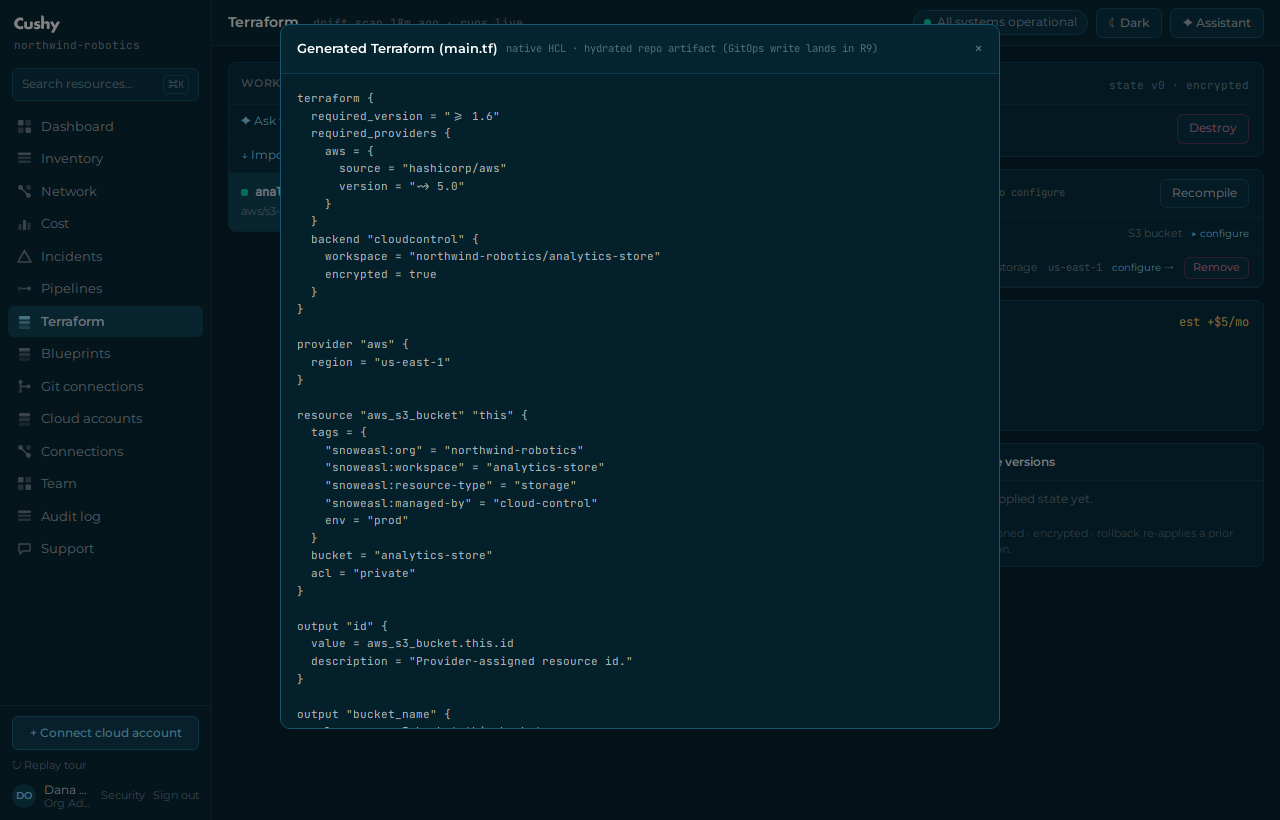
Every plan stores the composed module and resolved variables. The View generated Terraform button shows it as native HCL (main.tf). This artifact is the hydrated source of truth for your estate: on apply, the console commits it to your connected repository (GitOps-style) so the repo — not just platform state — is the record.
Cushy writes each workspace to terraform/workspace-<id>/ (and each import to terraform/imported/) as a COMPLETE native-HCL config: alongside main.tf it emits a versions.tf (required providers) and a provider.tf (region; credentials from your environment — no secrets are committed). There is no backend block, so it uses the LOCAL backend. Run terraform -chdir=terraform/<dir> init && terraform -chdir=terraform/<dir> apply from a clone to recreate the resources outside Cushy — e.g. to recover the estate if the account is wiped. Cushy's own runs use its encrypted internal/HTTP state backend; the repo copy is a portable local-backend copy.
Where plans and applies execute asynchronously, they are queued and run off the request path — the run shows Planning…/Applying… and the screen polls it to completion. For a real apply, the worker runs a real tofu plan, so the diff you approve is OpenTofu's actual add/change/destroy count, and apply materializes that exact saved plan file. Inline execution returns identical results.
Drift, state versions and rollback
- Drift — a refresh run (
POST .../drift) compares your applied state to live inventory and reports any out-of-band change as a reconcile plan. - State versions — every apply writes a new encrypted version. The raw state is never exposed in the UI.
- Rollback —
POST .../state { version }re-applies a prior version's config as a new version (never raw state surgery).
Real vs recorded deploys
An apply is either REAL (it runs OpenTofu against your live cloud and creates/modifies/destroys billable resources) or recorded-only (it is modeled in Cushy — inventory and state — but nothing is touched in the cloud). The wizard and the Terraform apply button tell you which one you're about to do, right at apply time.
A deploy is REAL only when the target cloud account has Terraform provisioning enabled. Until then the apply is recorded-only — nothing is touched in your cloud.
- Enable provisioning on the account
On the Cloud accounts screen, a manager (Org Admin / SRE · Cloud Admin) opens the account's Terraform provisioning control and confirms the acknowledgement — this authorizes real, billable resource creation with short-lived write credentials.
POST /api/cloud/accounts/{id}/provisioning { enabled: true, ack }. It is OFF by default: a connected account is read-only until you opt in. - Deploy
Plan → approve → apply as usual. With provisioning enabled, the apply banner reads REAL and OpenTofu runs the real
init→plan -out→applypipeline against your account with freshly-minted, short-lived credentials, then reads back the actual created resources (real ids/ARNs) into your Inventory. Otherwise the banner reads recorded-only and explains what to enable.
Cushy holds NO long-lived cloud keys. For each real apply it mints SHORT-LIVED credentials via the same keyless role-assumption used for read-only discovery (AWS STS AssumeRole; a separate write-scoped apply role is supported if you configure one), injects them into the one OpenTofu child process for that apply only, and tears them down with it. The credentials are never stored, never placed in the platform environment, and are redacted from the run logs. A real apply against a non-opted-in account is refused with a clear 409. All four clouds are wired behind the same keyless seam (GCP workload-identity impersonation, Azure OIDC federation, Alibaba AssumeRoleWithOIDC); AWS is live-verified today — the other three go live as soon as such an account and its federation are configured. An unconfigured federation fails with a clear message, never a cryptic OpenTofu error.
Chain modules: feed one module's outputs into another
Sometimes a module needs a value another module CREATED — e.g. deploy a VPC network blueprint (which outputs vpc_id), then deploy a compute blueprint whose vpc_id variable should be *that* VPC's id. Instead of copy-pasting the id, bind the variable to the output: on any string/select variable in the Configure form (Terraform screen or the Deploy wizard) click ← from output, pick the source workspace (it must be applied and not destroyed) and one of its outputs. The bound variable renders as a chip (vpc_id ← net-prod · vpc_id) instead of a text input; the × unbinds it.
- Outputs — every applied workspace's output values persist with its encrypted state version and show on the workspace detail (
GET /api/terraform/workspaces/{id}→outputs). Built-in blueprints declare realoutput {}blocks (idplus a semantic alias likevpc_id/bucket_name/instance_id); custom blueprints declare their ownoutputblocks in the module template. On a REAL apply the values come from the actual terraform state (sensitiveoutputs are never surfaced). - Resolution at plan time — a bound variable resolves SERVER-SIDE when you plan: the resolved value lands in the composed module exactly like a literal. Re-planning re-resolves, so if the upstream workspace was re-applied with a new value, your next plan shows the change as a normal diff.
- Honest failures — planning with a source that isn't applied yet, was destroyed, or has no output by that name is a clear 400 naming the workspace and the available outputs. A source workspace in another organization is a 404.
- Real dependencies — bindings define
Depends on/Used bylinks shown on the workspace (and the list). A workspace whose outputs feed LIVE dependent workspaces refuses destroy with a 409 naming them — destroy the dependents or unbind their variables first.
Bindings live per workspace as { varKey: { fromWorkspaceId, outputKey } } — set them at create (POST /api/terraform/workspaces with varBindings) or later via PATCH /api/terraform/workspaces/{id} { varBindings } (the whole map is replaced; {} clears). The plan response and the run history record each resolved binding (source workspace, output, and the value used), so every apply is auditable back to the upstream output it consumed.
Destroy
Destroying a workspace requires typing its exact name to confirm (DELETE /api/terraform/workspaces/{id} with { confirm }). Without a matching confirm you get a preview of what would be removed. On confirm, the managed resources are marked deleted and a final empty state version is written. A workspace whose outputs feed live dependent workspaces refuses destroy (409) until they are destroyed or unbound.
To tear down one member resource of an adopt/import folder without touching the rest, use the per-resource destroy instead: DELETE /api/terraform/workspaces/{id}/resources/{nativeId}?destroy=1 plans a −1 destroy run for exactly that resource (the Inventory row's Destroy…), which the normal approve/apply finishes — the workspace stays active with its other members.
The resource drawer on real orgs doesn't run a separate apply — it routes you to the workspace that manages the resource. Plan → approve → apply is the only way the platform changes your cloud.